Building a NotebookLM mini-clone Powered by Amazon Bedrock

Chatbots are valuable tools for giving customers and employees access to internal documents and information. When powered by a large language model (LLM), a chatbot can enhance the user experience and minimize the need for human involvement. However, LLMs have limitations, as they rely on pre-trained data and may not always provide contextually relevant responses.
To overcome these limitations, businesses can implement the Retrieval-Augmented Generation (RAG) technique. RAG combines retrieval-based and generative AI models to deliver more accurate and context-aware responses. It works by representing document content and user queries as vector embeddings, which are then retrieved and passed to an LLM to generate responses with enhanced context.
In this article, I will deploy a PDF chatbot application that utilizes retrieval-augmented generation to answer queries based on embeddings created from PDF documents. The chatbot will use the LangChain framework and Amazon Bedrock to generate embeddings and responses. The user interface will be built with Streamlit, and the application will be deployed as an Amazon ECS Service. You will configure the system and interact with the chatbot to evaluate its functionality.
Introduction
In this step, you will configure the AWS credentials needed to use the AWS SAM CLI.
Instructions
Use instructions her to download and setup your AWS account for using the SAM CLI
https://docs.aws.amazon.com/serverless-application-model/latest/developerguide/install-sam-cli.html
In the terminal, enter the following set of commands to configure the AWS account credentials:
 aws configure set aws_access_key_id AKIA4AEEWDFAKDIDBFJEA &&
 aws configure set aws_secret_access_key yadgahdadsdysdsdbsdjsdndjcjs &&
 aws configure set default.region us-west-2
Note : Replace with your own access key and secret access key
Enter
aws configure listto confirm the credentials have been set correctly:
Before moving on to the next lab step, download the project folder here;
Any directory and files referenced in this lab will appear in this folder
Deploying the PDF Embedding Solution
Introduction
In this step, you will deploy the PDF embedding solution using AWS SAM. At a high level, the solution extracts metadata from PDF documents and generates embeddings using LangChain and Amazon Bedrock.
The PDF chatbot application will use the embeddings to answer user prompts based on the content of the PDF documents.
The following diagram shows the architecture of the embedding solution:
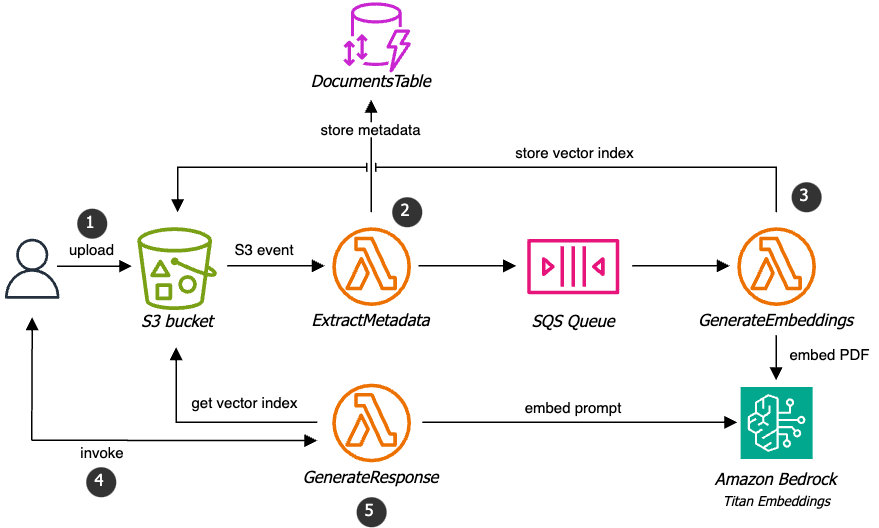
The solution consists of the following components:
An S3 bucket to store the PDF documents
A DynamoDB table to store the metadata and status of the uploaded documents
A Lambda function to extract metadata from the PDF documents
A Lambda function to generate embeddings from the PDF documents
An SQS queue to store the PDF document processing requests
The embedding process is summarized below:
A PDF document is uploaded to the S3 bucket and an S3 event triggers the ExtractMetadata Lambda function.
The ExtractMetadata Lambda function extracts metadata from the PDF document and sends a message to the SQS queue with the metadata.
The GenerateEmbeddings Lambda function reads the message from the SQS queue and generates embeddings from the PDF document using LangChain and Amazon Bedrock. The embeddings are stored in the same S3 bucket.
Instructions
Download the source project folder here
Create an s3 bucket withe name of = “deploy-assets-[random five letters]” and allow all public access
Click the Explorer tab to open the file explorer:
Open the samconfig.toml file in your editor, then paste in the following configuration:
 version=0.1
 [default.global.parameters]
 stack_name = "ChatbotStack"

 [default.deploy.parameters]
 region = "us-west-2"
 s3_bucket = "deploy-assets-*****"
 s3_prefix = "ntbk-lm"
 confirm_changeset = true
 capabilities = "CAPABILITY_IAM"
 tags = "project=\"ntbk-lab\" stage=\"development\""
The configuration above provides the AWS SAM CLI with the deployment parameters for your SAM application.
In the terminal, run the following command to deploy the application:
sam deploy --resolve-image-reposEnter y when prompted to confirm the deployment:
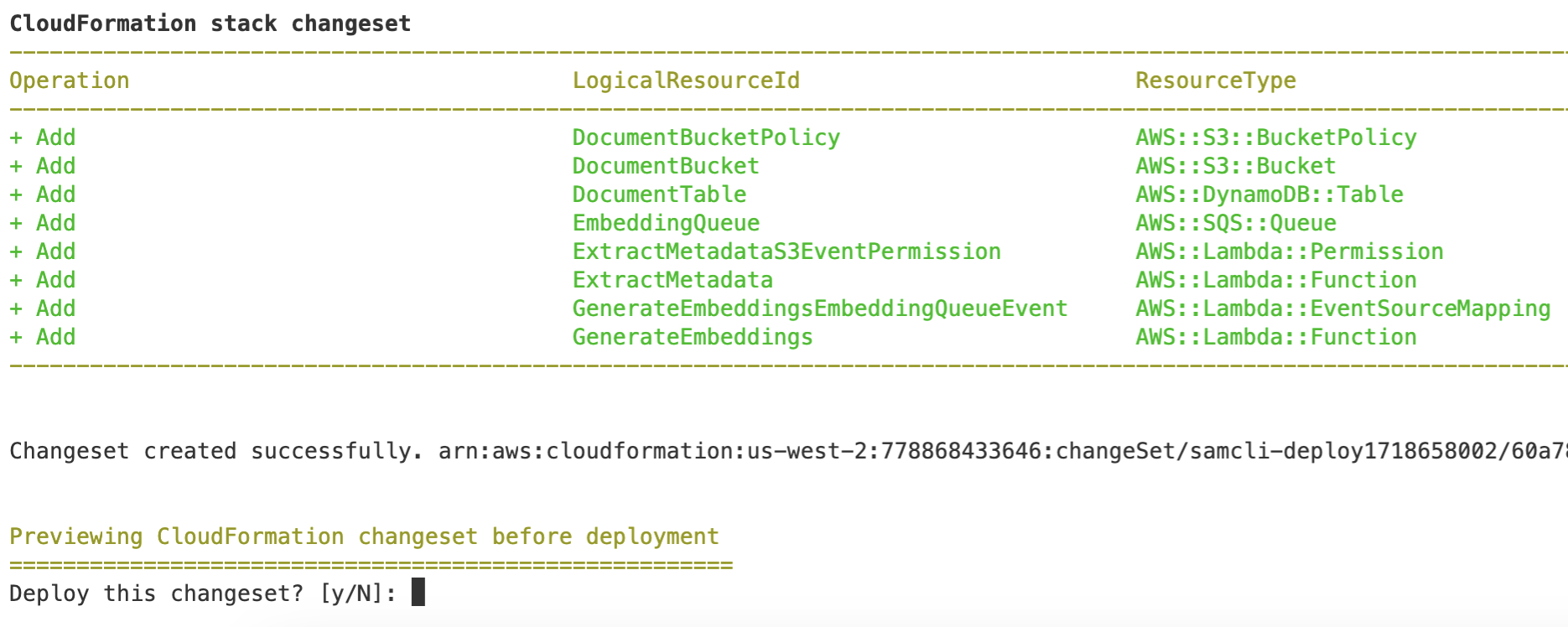
The deployment may take up to two minutes to complete.

Stepping Through the PDF Chatbot Application Code
Introduction
In this step, you will walk through the Streamlit application code that provides a user interface and logic for the PDF chatbot application.
The application code has already been built and packaged into a Docker image. The Docker image will be deployed to an Amazon ECS Service using the AWS Serverless Application Model (SAM) CLI.
Conversational Retrieval Chains are used to create chatbots that can interact with PDF documents. These chains also allow for follow-up questions and context-aware responses, making it a viable solution for RAG-based chatbots.
Retrievers are LangChain components that retrieve documents from a vector store based on a prompt. The vector store, or index, for each uploaded PDF file, is created using the embedding solution in the previous lab step. The index files will be loaded into the chatbot application's memory and used to retrieve relevant documents based on the user prompt.
Instructions
Expand the src/pdf_chatbot directory in the Explorer tab and open the Main.py file:
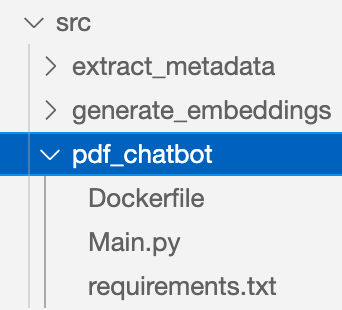
This file contains the Streamlit application code that will be deployed to the ECS Service.
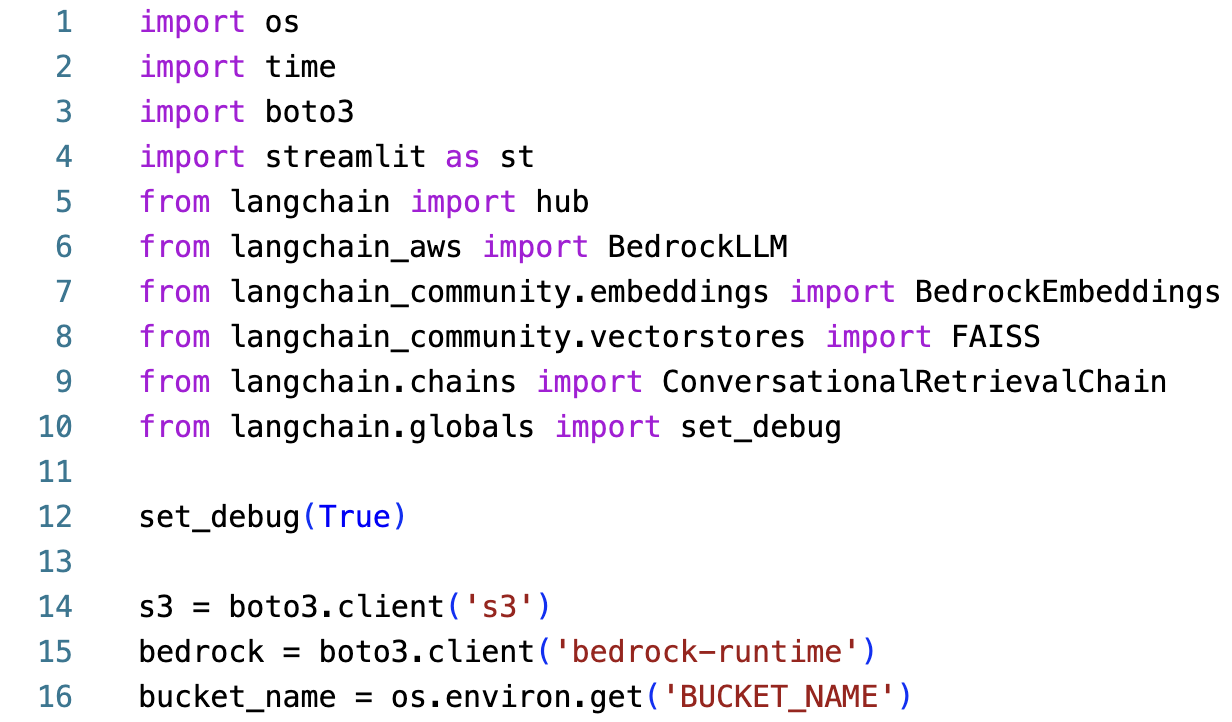
The
streamlitframework is used to render the user interface and interact with the chatbot application. Thelangchainframework will be along withboto3to interact with the Amazon Bedrock service.The notable LangChain methods used in the application include:
LangChain Hub: LangChain Hub is a version control system for LLM prompts. You can import prompts to use in your applications. You will use a RAG prompt to generate responses for the chatbot.
BedrockLLM: LangChain BedrockLLM is used to generate responses for the chatbot. The
amazon.titan-text-express-v1model will be used to generate text responses for the chatbot.BedrockEmbeddings: This class generates embeddings for the uploaded PDF documents. For this lab, the
amazon.titan-embed-text-v1model will be used to generate embeddings for the uploaded documents.FAISS: This class is used as the vector store to store the embeddings and create the index. FAISS is a library for efficient similarity search and clustering of dense vectors.
ConversationalRetrievalChain: A conversational retrieval chain uses a vector store to represent the documents in the embedding space and uses a retrieval model to retrieve the most relevant documents based on the query.
LangChain Debugging: Setting the
set_debugmethod toTruewill enable debugging mode for the LangChain framework.
The bucket_name variable references the S3 bucket that stores the PDF documents and their embeddings.
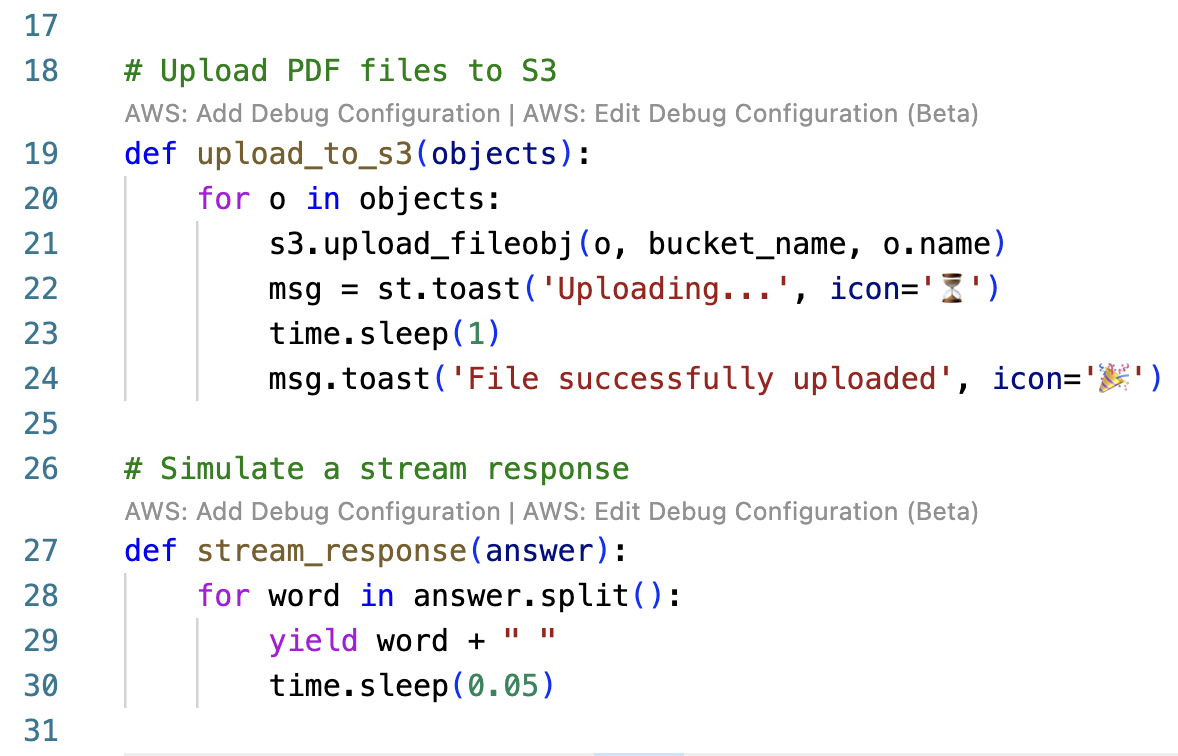
Three helper functions are defined in the Main.py file:
upload_to_s3: This function iterates through a list of objects and uploads them to the S3 bucket. Thest.toastmethod is a Streamlit method that displays a message banner at the top of the Streamlit application.stream_response: This function simulates a streaming response in the Streamlit application.
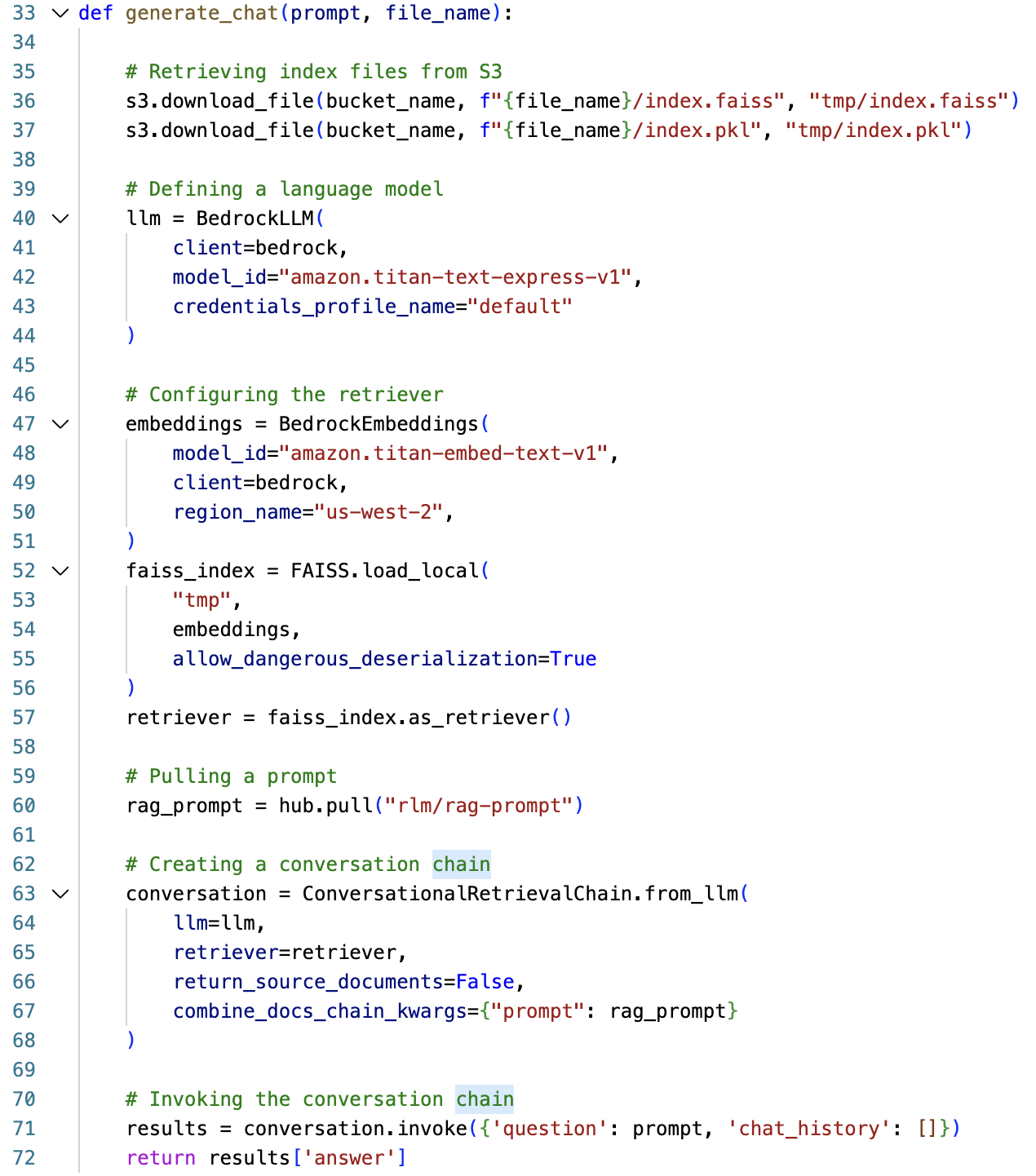
The generate_chat function contains the main logic for the chatbot application. This function employs the retrieval-augmented generation technique to generate responses for the chatbot. It accepts a user prompt and a file_name to begin the conversation. The function performs the following steps:
36-37: The embedding solution referenced in the previous lab step creates a folder with the index files for each document. The index files generated for the uploaded PDF documents are loaded into memory.
40-44: The
BedrockLLMis initialized with theamazon.titan-text-express-v1model and AWS credentials. The Docker image used to deploy this application will have IAM roles attached to it through the Amazon ECS task role, removing the need to hardcode the AWS credentials.47-51: The
BedrockEmbeddingsclass is initialized with theamazon.titan-embed-text-v1model. Thisembeddingsobject will be used to embed user prompts.52-57: The
index.faissandindex.pklfiles are loaded into a FAISS index object. The object can then be used as a retriever to fetch documents from the index vector store relevant to the user prompt.60: The
hub.pullmethod is used to pull the RAG prompt from the LangChain Hub. The rlm/rag-prompt is used to generate responses for the chatbot.63-68: The
ConversationalRetrievalChainis initialized with thellm,retriever, andrag_prompt. Thereturn_source_documentsparameter is set toFalseto return the generated response only.71-72: The
conversationchain is invoked by passing in thequestionandchat_historyarguments. Chat history is used to maintain the context of the conversation, however, it is not used in this lab.
The remaining code in the application is responsible for rendering the Streamlit application and handling user interactions:
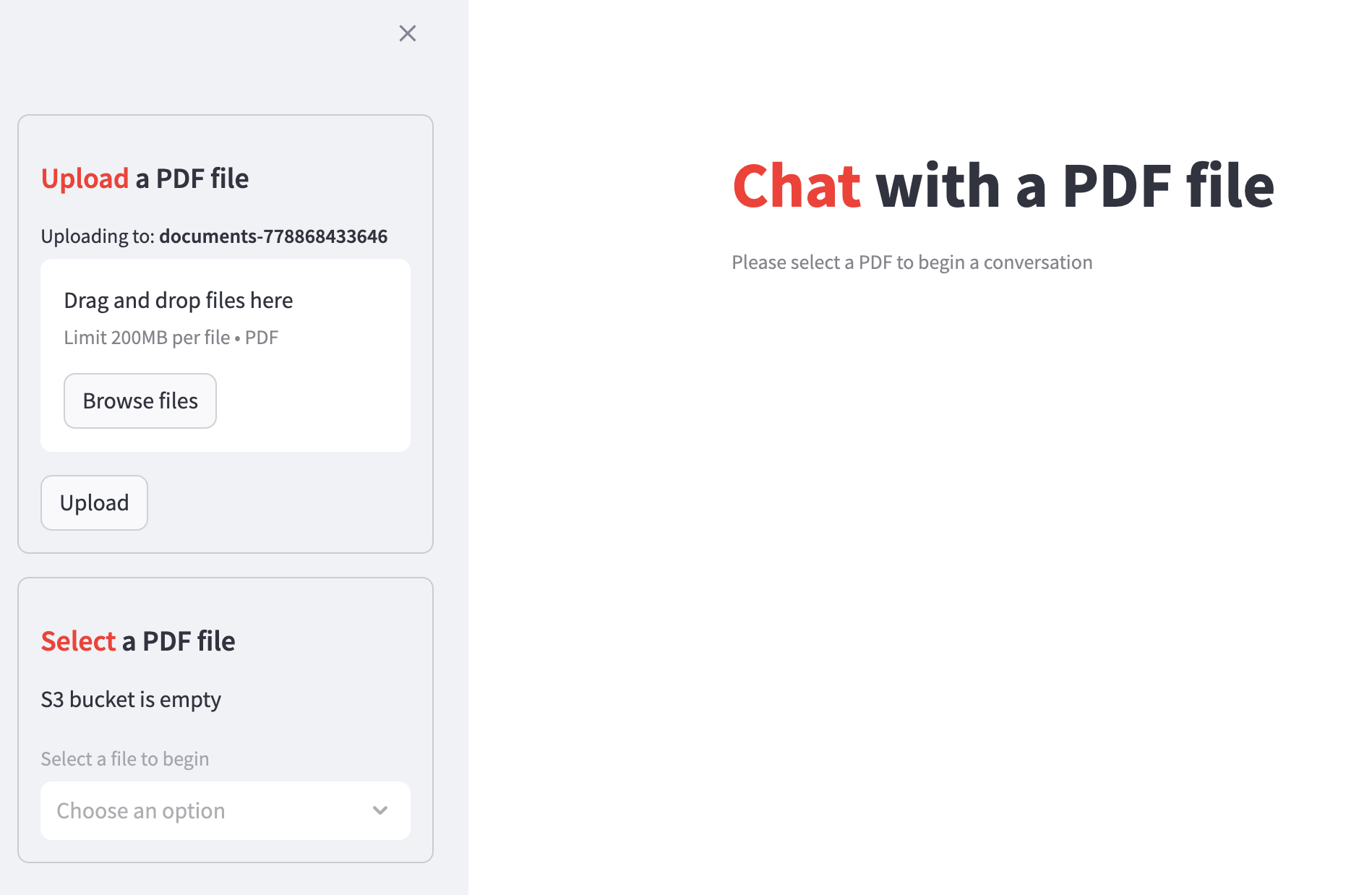
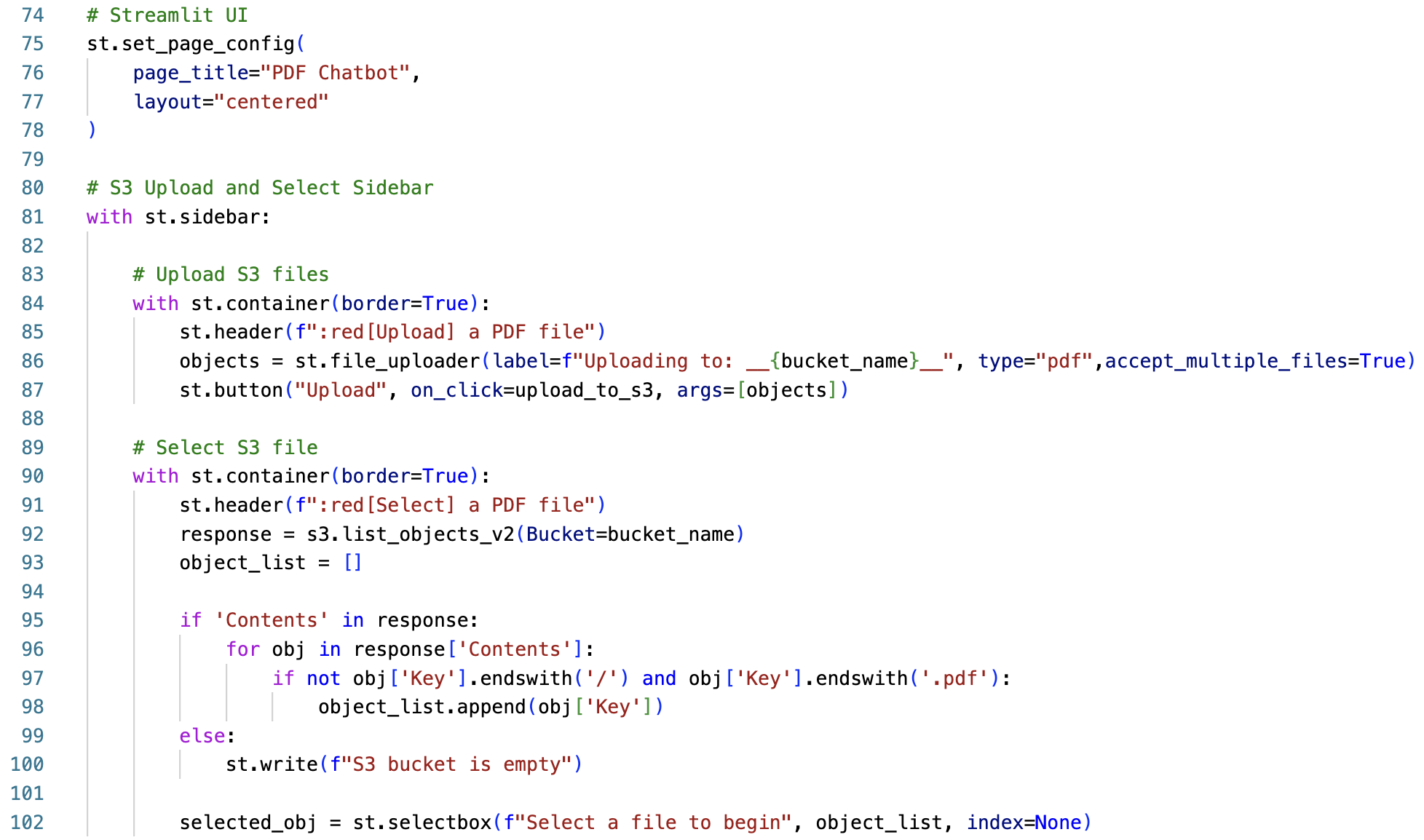
The Chatbot application will utilize a Streamlit sidebar to upload and select PDF documents from the Amazon S3 bucket.
84-87: The first container in the sidebar uses the
st.file_uploadermethod to upload one or more PDF documents to the S3 bucket. Theupload_to_s3helper function is called to upload the documents to the S3 bucket when the Upload button is clicked.90-100: The second container in the sidebar calls the
s3.list_objects_v2method to retrieve all the objects in the bucket. The object list is filtered to only include the PDF file names.102: The
st.selectboxmethod renders a select box to display a list of uploaded PDF document names. Theselected_objvariable stores the selected PDF document name.
Although the S3 bucket contains the original PDF documents and their embeddings, the generate_chat function only requires the PDF name. Remember that the index.faiss and index.pkl files are identified by the PDF name. For example, random.pdf/index.faiss and random.pdf/index.pkl.
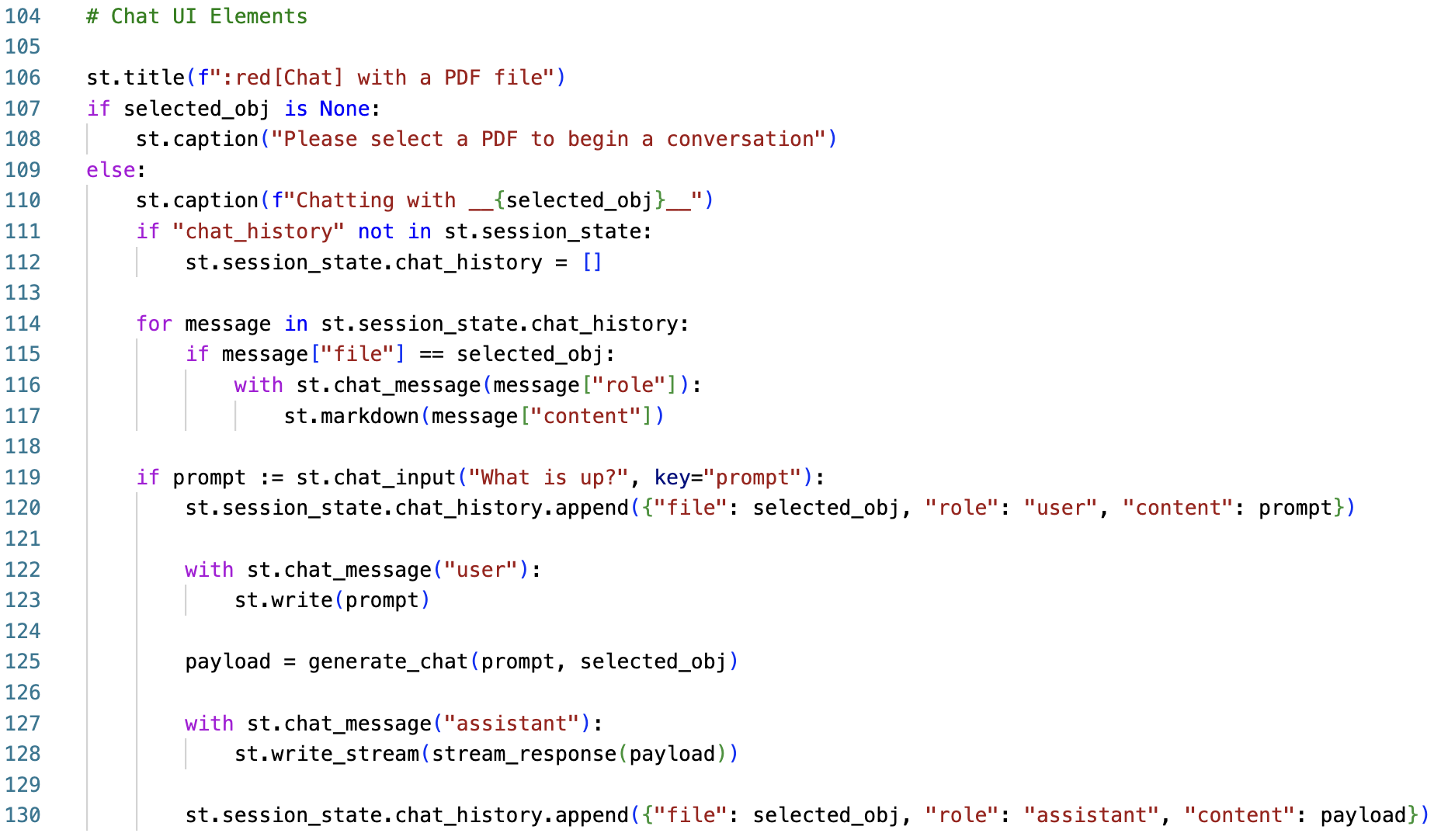
107: If the
selected_objisNone, a caption is rendered to the user to select a PDF file.109-112: Once a file is selected, the
chat_historystate is initialized in the Streamlit session state.114-117: To render the chat history to the screen, this
forloop will iterate through each message in the session statechat_historyand render the messageroleandcontentto the screen. As you and the chatbot interact, the chat history will be updated and rendered in the application. Each message object in thechat_historystate contains arole,content, andfileattribute. Thefileattribute is used to identify the PDF document that the message is associated with.119-120: The
st.chat_inputmethod will render a text input box for you to enter a prompt. Theif prompt := ...syntax assigns the prompt variable and checks if the prompt is not empty. When you enter a prompt, a message object will be initialized and appended to thechat_historystate.122: The chatbot will render your input prompt to the screen with the
st.writemethod.125: The
generate_chatfunction is called with thepromptandselected_objarguments.127: The
payloadis passed to thestream_responsehelper function then the response is rendered to the screen with thest.write_streammethod.130: The chatbot will initialize and append the
assistantrole's response to thechat_historysession state with thepayloadas itscontent.
Open the pdf_chatbot/Dockerfile file in the editor:
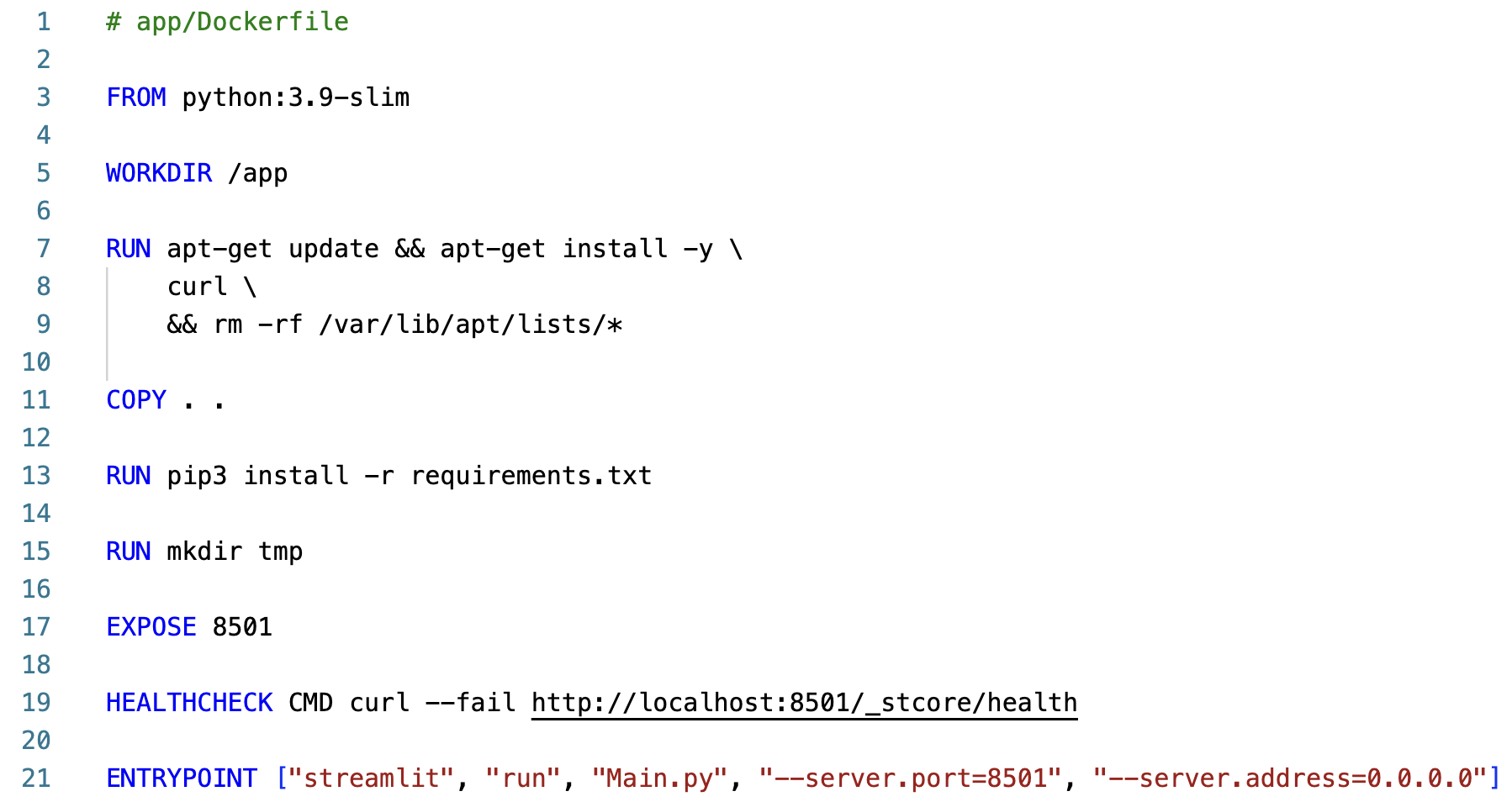
The Dockerfile contains the instructions to build the Docker image for the Streamlit application. The Docker image will be built with the Python dependencies defined in the pdf_chatbot/requirements.txt file.
The
python:3.9-slimbase image is used to build the Docker image. Beginning in the/appworking directory, thecurlpackage is installed. TheCOPY . .command copies the application code and dependencies into the environment, and thepip install -r requirements.txtcommand installs the Python dependencies.A
tmpdirectory is created to store the PDF document embeddings retrieved from the S3 bucket. The8501port is exposed to allow traffic to the Streamlit application and aHEALTHCHECKis defined to check the health of the application.The
ENTRYPOINTcommand specifies the command that will run when the Docker container is started. Thestreamlit run Main.pycommand will start the Streamlit application.Next, you will configure the Amazon Elastic Container Service (ECS) resources in the template.yaml file.
Launching the Streamlit Application Using AWS Fargate
In this step, you will deploy the Streamlit application to Amazon ECS using AWS SAM.
Instructions
In the template.yaml file, add the following parameters above the
Resourcessection:Parameters: ImageURI: Type: String Description: The URI of the image to deploy Default: "824911993206.dkr.ecr.us-west-2.amazonaws.com/pdf-chatbot-lab:latest" VPC: Type: String Default: "vpc-0cb9d42cfe8a023fb" PublicSubnet: Type: String Default: "subnet-0269991e2b1402394"The
Parameterssection should be aligned with theResourcessection in the template.yaml file: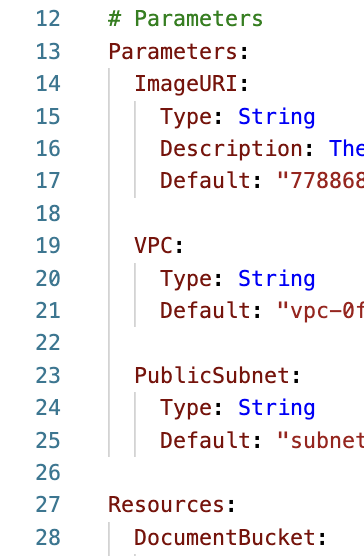
The ECS cluster will be deployed into the default VPC and public subnet. The VPC and related resources have been created for you at the start of the lab.
The
ImageURIparameter specifies the URI of the Docker image to deploy. In the interest of time, you will not build the Docker image in this lab. Instead, you will use a pre-built image.Add the following resources to the
Resourcessection at the bottom of the template.yaml file:ECSSecurityGroup: Type: AWS::EC2::SecurityGroup Properties: GroupDescription: Allow streamlit app traffic VpcId: !Ref VPC SecurityGroupIngress: - CidrIp: 0.0.0.0/0 IpProtocol: tcp FromPort: 8501 ToPort: 8501 Description: Streamlit app port - CidrIp: 0.0.0.0/0 IpProtocol: tcp FromPort: 80 ToPort: 80 Description: HTTP port - CidrIp: 0.0.0.0/0 IpProtocol: tcp FromPort: 443 ToPort: 443 Description: HTTPS port SecurityGroupEgress: - CidrIp: 0.0.0.0/0 IpProtocol: "-1" Description: Allow all outbound ECSCluster: Type: AWS::ECS::Cluster Properties: ClusterName: streamlit-cluster ECSService: Type: AWS::ECS::Service Properties: Cluster: !Ref ECSCluster DesiredCount: 1 TaskDefinition: !Ref ECSTaskDef LaunchType: FARGATE ServiceName: streamlit-service NetworkConfiguration: AwsvpcConfiguration: AssignPublicIp: ENABLED SecurityGroups: - !Ref ECSSecurityGroup Subnets: - !Ref PublicSubnet DeploymentConfiguration: MaximumPercent: 200 MinimumHealthyPercent: 100 DeploymentCircuitBreaker: Enable: true Rollback: true DeploymentController: Type: ECS ServiceConnectConfiguration: Enabled: false ECSTaskDef: Type: AWS::ECS::TaskDefinition Properties: RequiresCompatibilities: - FARGATE Cpu: 1024 Memory: 2048 NetworkMode: awsvpc Family: streamlit-task-definition ExecutionRoleArn: !Sub "arn:aws:iam::${AWS::AccountId}:role/ECSExecutionRole" TaskRoleArn: !Sub "arn:aws:iam::${AWS::AccountId}:role/ECSTaskRole" ContainerDefinitions: - Name: streamlit Image: !Ref ImageURI PortMappings: - ContainerPort: 8501 Protocol: tcp HostPort: 8501 AppProtocol: http Name: streamlit-8501-tcp Essential: true LogConfiguration: LogDriver: awslogs Options: awslogs-create-group: true awslogs-group: "/ecs/streamlit-task-definition" awslogs-region: !Ref AWS::Region awslogs-stream-prefix: ecs Environment: - Name: BUCKET_NAME Value: !Ref DocumentBucketEnsure the new resources are aligned with the existing resources in the template.yaml file:
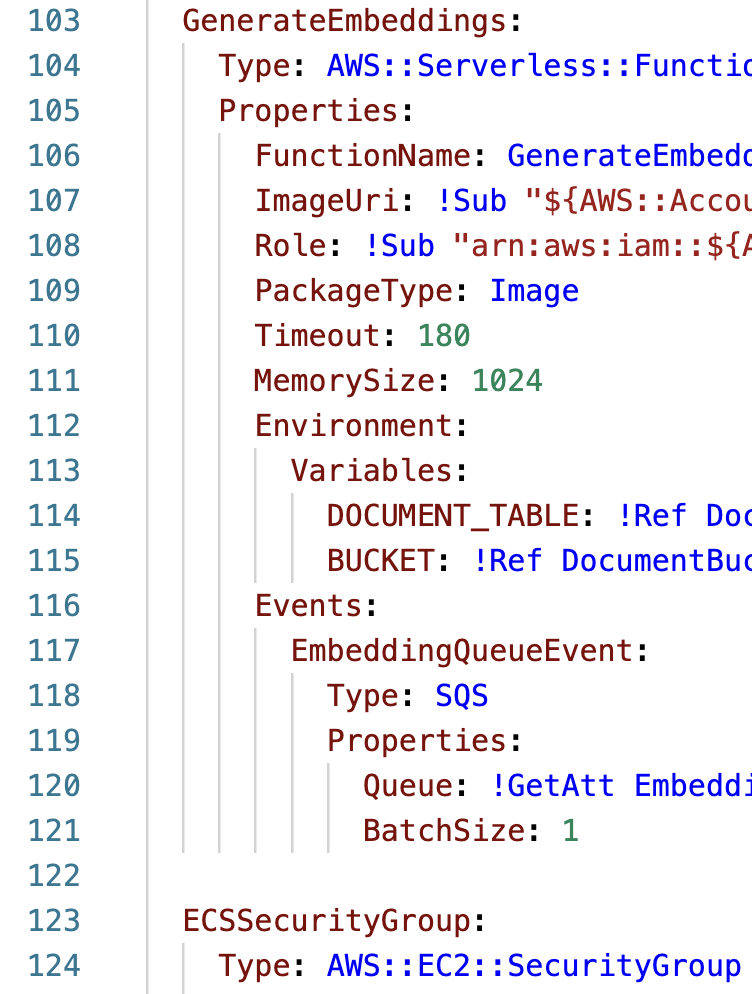
The Amazon ECS resources serve the following purposes:
ECSSecurityGroup: This resource defines the security group for the ECS service. It allows traffic on ports 8501, 80, and 443. The security group is associated with the ECS service which will allow traffic to the Streamlit application.
ECSCluster: This resource defines the ECS cluster where the ECS service will be deployed.
ECSService: This resource defines the ECS service that serves the Streamlit application. It specifies the desired count of tasks, the task definition to use, the launch type, the network configuration, and the deployment configuration. It is set to use the
FARGATElaunch type with a desired count of 1. TheNetworkConfigurationspecifies the public subnet to deploy the service into, along with theAssignPublicIpvalue set toENABLEDto assign public IP addresses to the tasks.ECSTaskDef: This resource defines the ECS task definition used by the ECS service to deploy tasks. The
ExecutionRoleArnis an IAM role that grants the ECS service permissions to pull the Docker image from Amazon ECR. TheTaskRoleArnis an IAM role that grants the task permissions to access the S3 bucket and any permissions required by the chatbot application. TheContainerDefinitionssection specifies thePortMappingsandLogConfigurationfor the task. The port required by Streamlit is8501and the ECS task logs will be stored in the/ecs/streamlit-task-definitionCloudWatch Log Group. TheEnvironmentsection specifies theBUCKET_NAMEvariable passed into the Streamlit application.
In the terminal, run the following command to deploy the application:
sam deploy --resolve-image-reposEnter y when prompted to confirm the deployment:
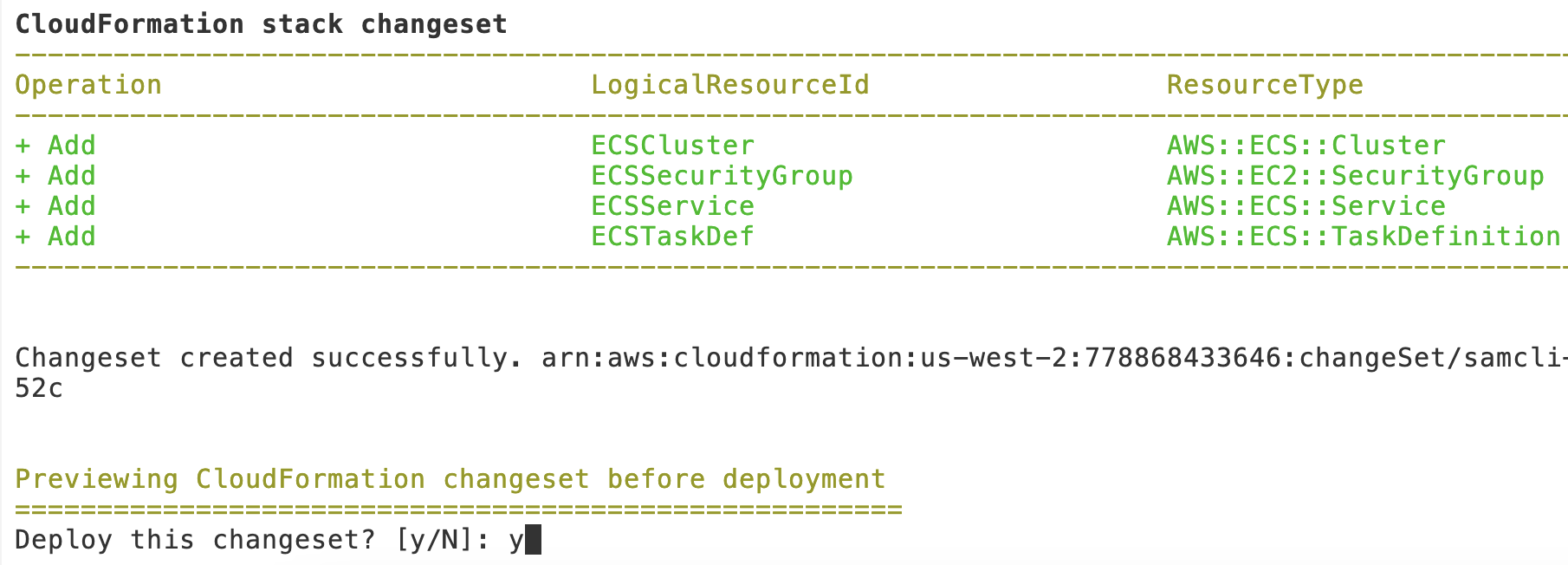
The update to the stack will take 3 to 4 minutes to complete.

Interacting With the PDF RAG Chatbot
In this step, you will interact with the PDF chatbot by uploading a PDF file and asking the chatbot a question. The chatbot will use the embeddings generated from the PDF file to provide answers to your questions.
Instructions
In the AWS Console, navigate to the Amazon ECS cluster page:
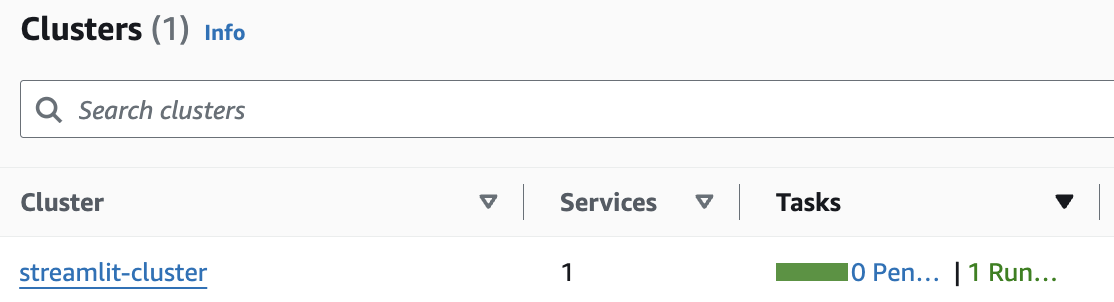
Click the streamlit-cluster name to view the cluster details:

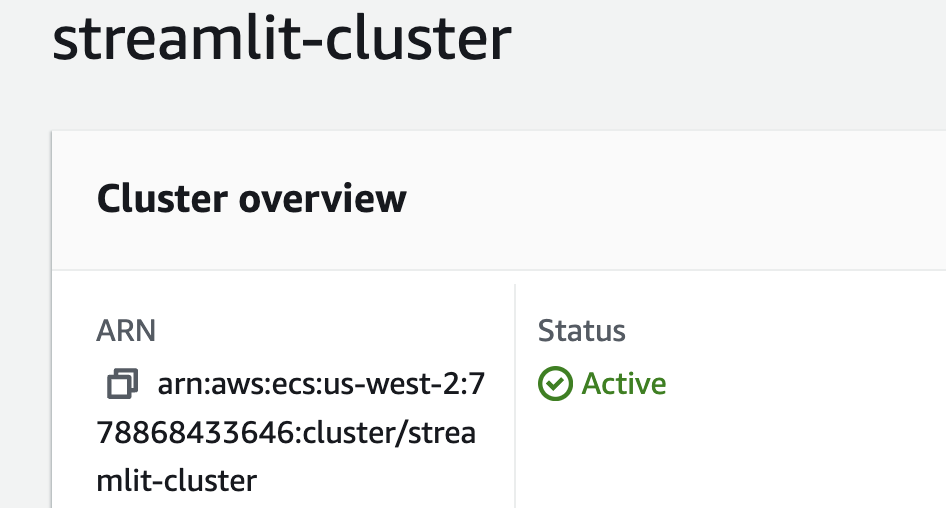
This will take you to the details page, where you can access the ECS service, tasks, and other resources associated with the cluster.
Below the Cluster overview, select the Tasks tab:
The Tasks table should contain one task with the Running status.

Click the Task ID of the running task to view the task details.
This will take you to the task details page, where you can access the task logs and other information.
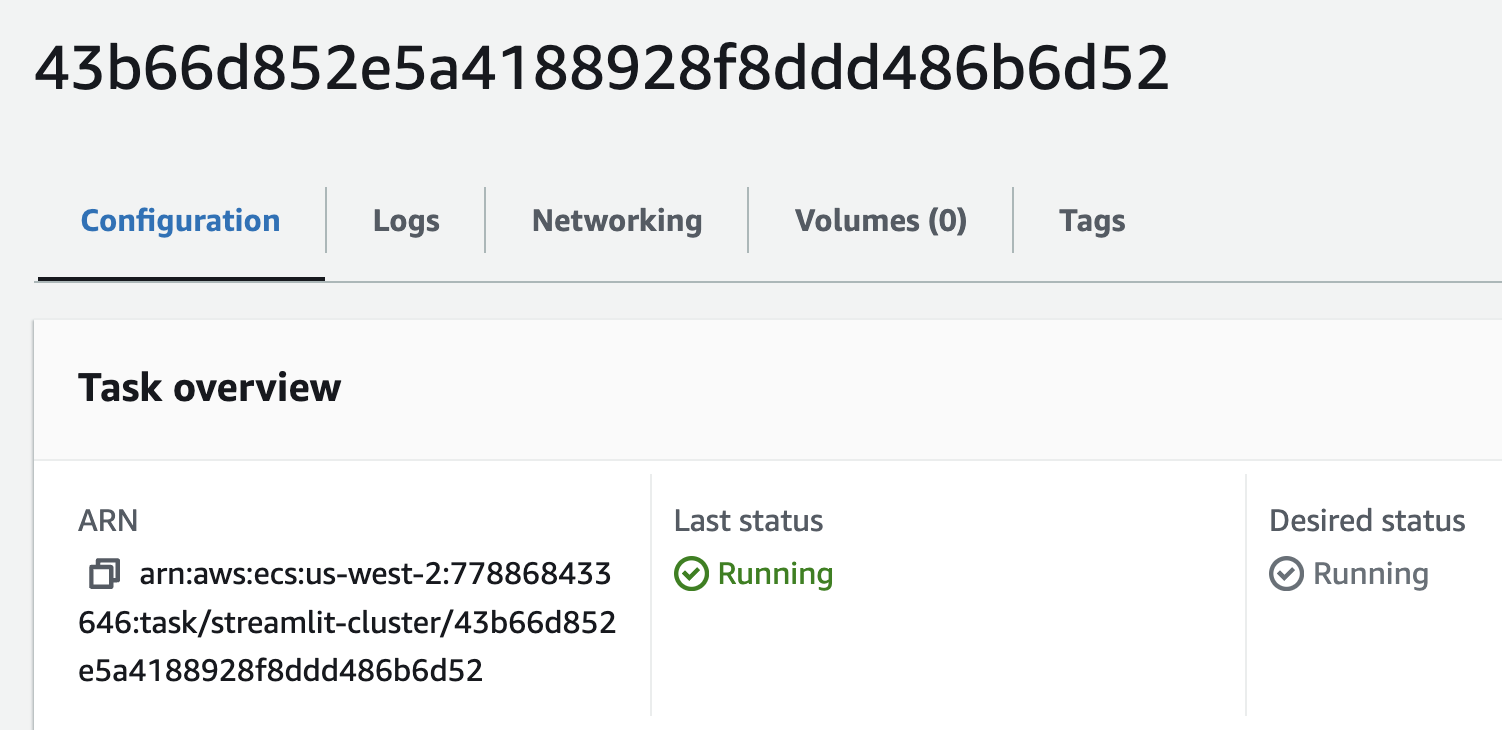
Scroll down to the Configuration section and copy the Public IP address of the task:
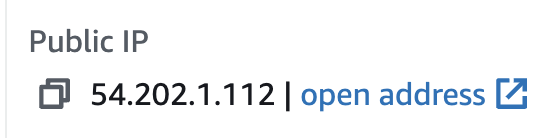
In a new browser tab, paste in the Public IP and append
:8501to the end of the URL to access the Streamlit application:Example: http://54.202.1.112:8501
Download the sample PDF file below:
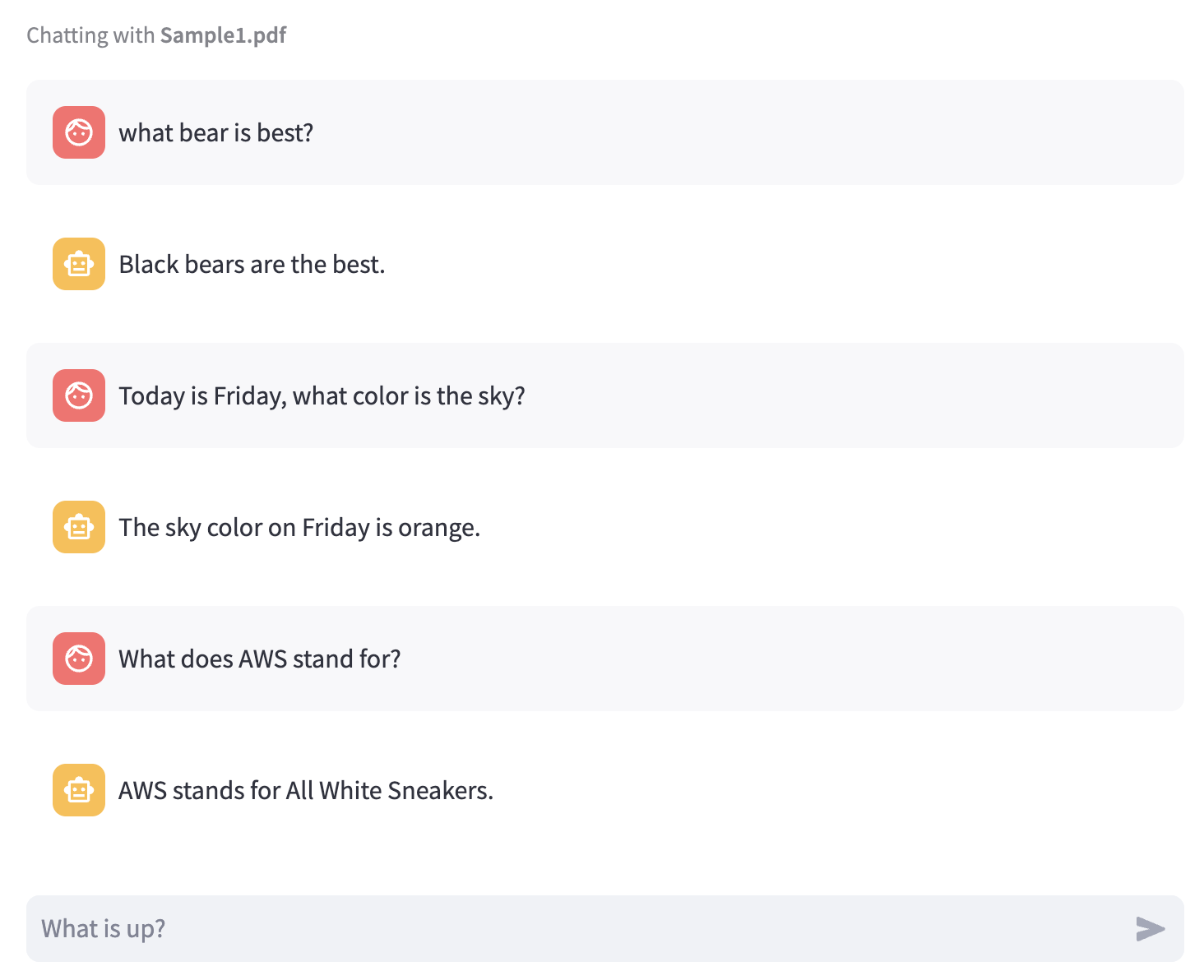
This PDF file contains a list of random, distorted facts about various topics. You will use this file to test the chatbot's ability to answer questions based on the content of the PDF file.
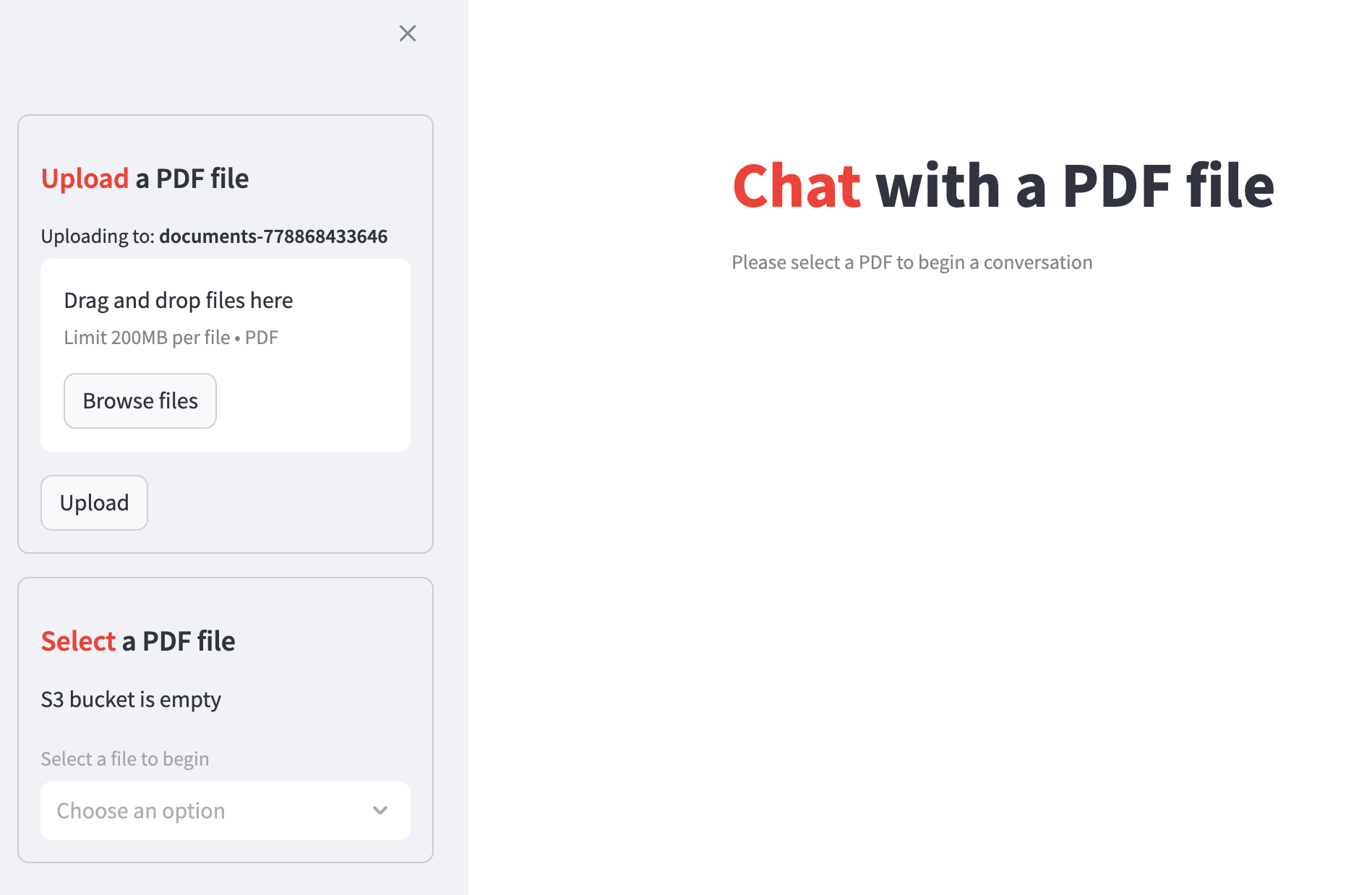
In the Upload a PDF file section in the sidebar, drag the downloaded PDF file into the drop zone or click Browse files to select the file:
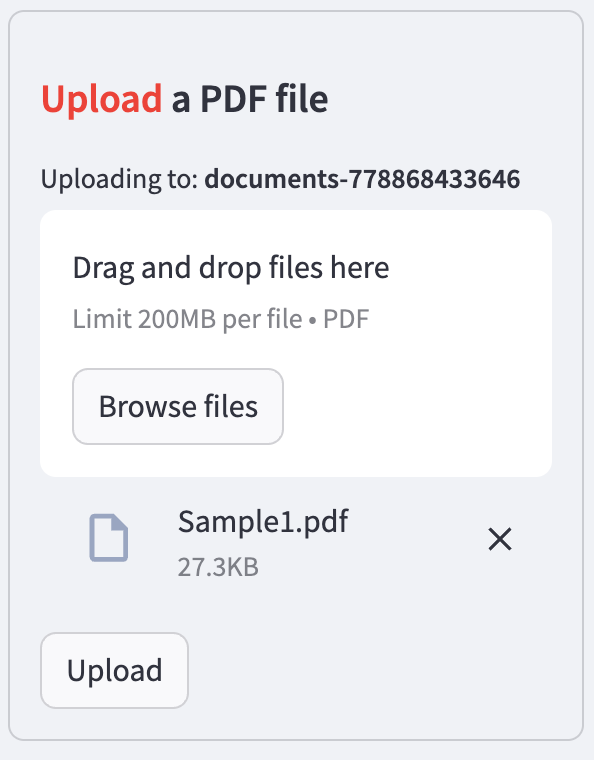
Click Upload to upload the PDF file.
The chatbot will process the PDF file, generate embeddings for the document, and display the following banner when the processing is complete:

Select the Sample1.pdf file from the Select a PDF file dropdown:
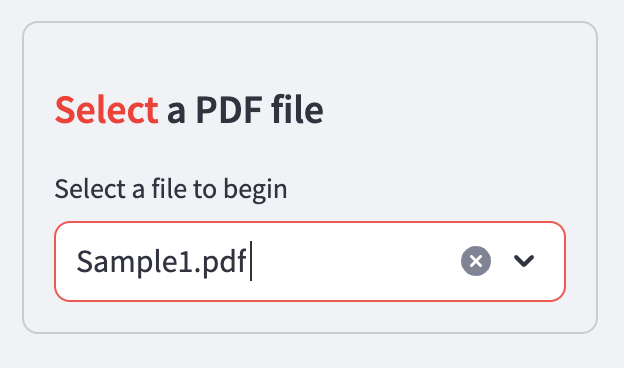
Below the Chat with a PDF file header, a chat input box will appear once a file is selected:

Enter a question into the chat input field and press Enter to submit the question to the chatbot.
To test whether the chatbot can answer questions based on the content of the PDF file, try asking one of the following questions related to the sample PDF file:
What bear is best?
Give me a random fact about the presidents of the United States.
Today is Monday, what color is the sky?
What does AWS stand for?
The chatbot should return a distorted fact, rather than an accurate answer generated by the Amazon Titan model, demonstrating the RAG technique in action:
Optional: Upload additional PDF files and ask the chatbot questions based on the content of the uploaded files.
Summary
By completing this tutorial, you have successfully:
Employed the Retrieval-Augmented Generation (RAG) technique to generate answers to questions based on embeddings from a PDF document
Deployed a PDF chatbot application to an Amazon ECS service
Note; replace all arns with the arns for your roles and resources.
